Quick add: type a task in plain words
Dates, projects, people, priority and labels in one line. Every token explained.
On this page
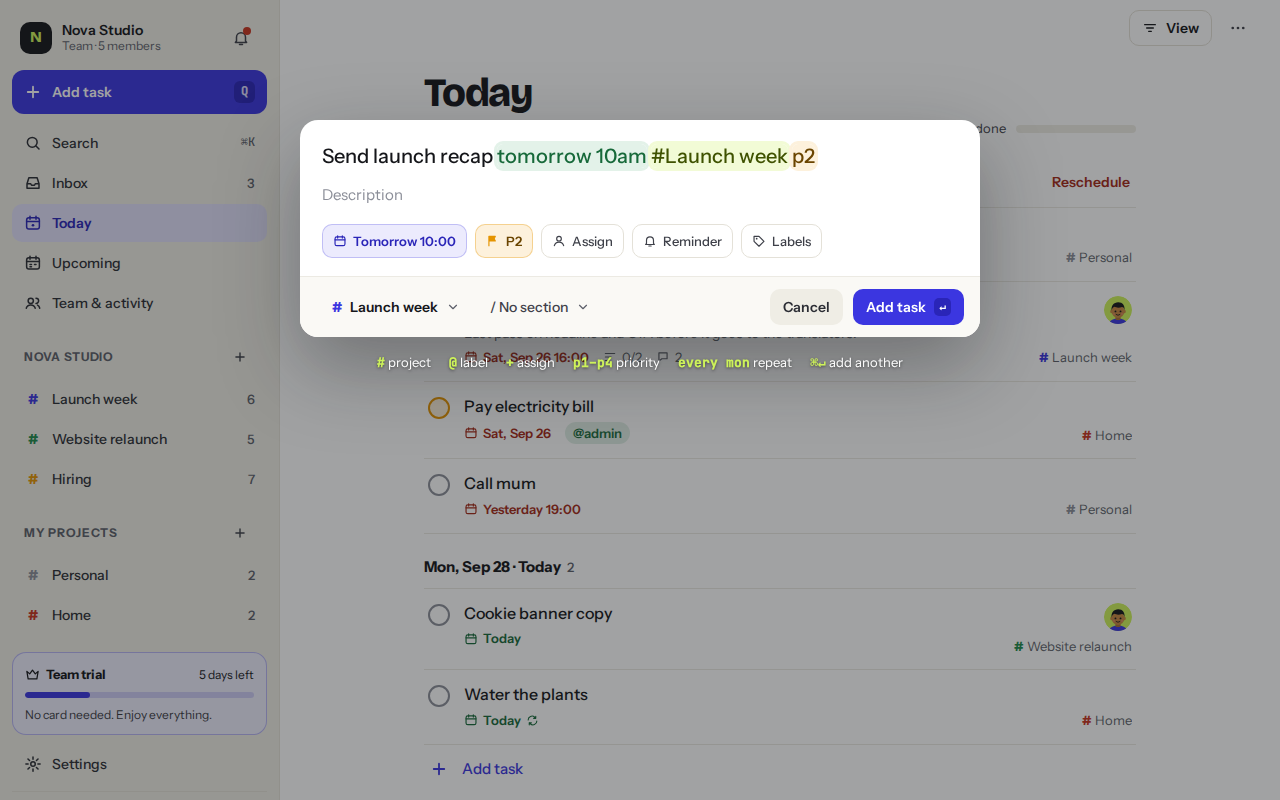
Quick add turns one line of text into a complete task. Press Q anywhere in the app, type, and press Enter. Hecho highlights what it understood as you type.
Send launch recaptomorrow 10am1#Launch2+Marta3p14@email5
- A date and time in plain words. It becomes the due date.
- # and a project name. The task goes straight into that project.
- + and a teammate’s name. The task is assigned to them.
- p1 to p4 sets the priority. p1 is the most urgent.
- @ and a label name. Add as many labels as you like.
Every token
| Type | Example | What it does |
|---|---|---|
| A date | tomorrow · fri · next monday · 12 oct | Sets the due date. |
| A time | 10am · 16:30 · tomorrow 10am | Adds a due time to the date. |
| A repeat | every weekday 9:30 · every mon · daily | Makes the task repeat. |
# | #Website · #Launch week | Puts the task in that project. |
+ | +Marta | Assigns it to a teammate. |
p1 p2 p3 p4 | p1 | Sets the priority, p1 is the most urgent. |
@ | @errands @calls | Adds labels. You can add several. |
Examples
Pay the photographerfriday+Sarap1#Website
Stand-up notesevery weekday 9:30#Team
Buy milktomorrow@errands
How the tokens are read
- Dates work in English and Spanish, like “tomorrow 10am”, “fri” or “mañana”.
- A project name can have up to two words after the #, like #Launch week.
- Projects, people and labels must already exist. If Hecho can’t find one, the word stays in the title and you’ll see a note under the box.
- You can also skip the typing: use the Date, Priority, Assign, Reminder and Labels chips under the title, and the project and section pickers at the bottom.
Keys
Press ↵ to add the task. Press ⌘ ↵ to add it and keep the box open for the next one. Press Esc to close.
Was this helpful?