List and board views
Show a project as a checklist or as columns you drag cards across.
On this page
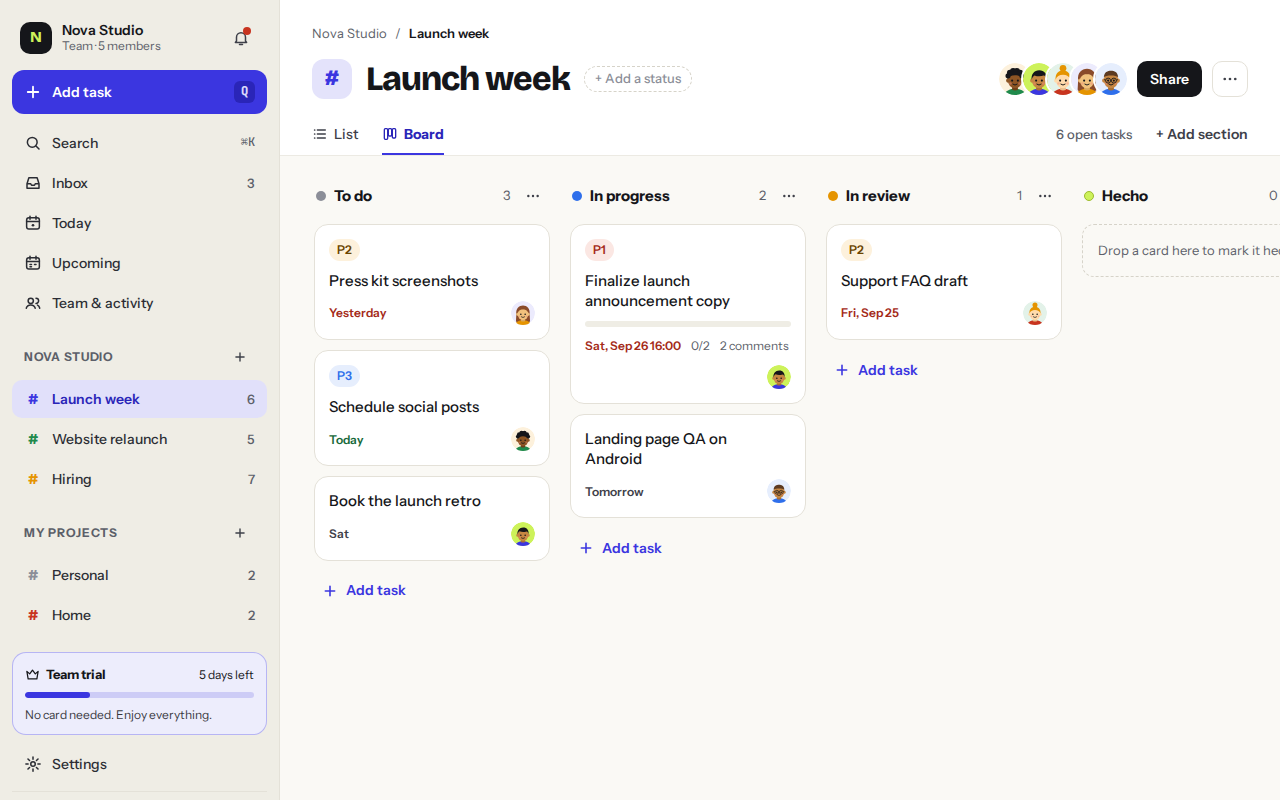
Each project can be shown as a list or as a board. Switch with the List and Board buttons at the top of the project. The choice is saved for the project.
List
A list shows tasks one under the other, grouped by section. It’s ideal for checklists and simple projects.
This week2
Post the job adToday
Shortlist candidatesFri
Interviews1
Prepare interview questions
Add section
Board
A board shows each section as a column, like To do, In progress and Done. Drag cards between columns as work moves along.
To do2
Write the press releaseP2
Book the photographer
In progress1
Landing page copyP1
Done1
Pick a launch date
- Each section of the project is a column.
- Drag a card to another column to change its section.
- Mark a column as the done column and cards dropped there are completed.
Seeing tasks by date
To see tasks across all projects day by day, use Upcoming. It works as a week calendar where you can drag tasks between days.
Was this helpful?